 YTVidHub
Quick Summary
Method 1 (Official): Free, but manual. Only works for YOUR videos one by one.
Method 2 (YTVidHub): Free, instant, supports Batch/Playlist download for ANY video.
Creator's Guide
The definitive guide to exporting captions from your own channel, plus a faster method to download from any video you don't own.
Method 1 (Official): Free, but manual. Only works for YOUR videos one by one.
Method 2 (YTVidHub): Free, instant, supports Batch/Playlist download for ANY video.
Downloading subtitles from your own YouTube videos is a common task for creators who want to repurpose content or back up their work. However, YouTube hides this feature deep within the Studio interface.
Log in to YouTube Studio. In the left sidebar, click on 'Content' or 'Subtitles'.
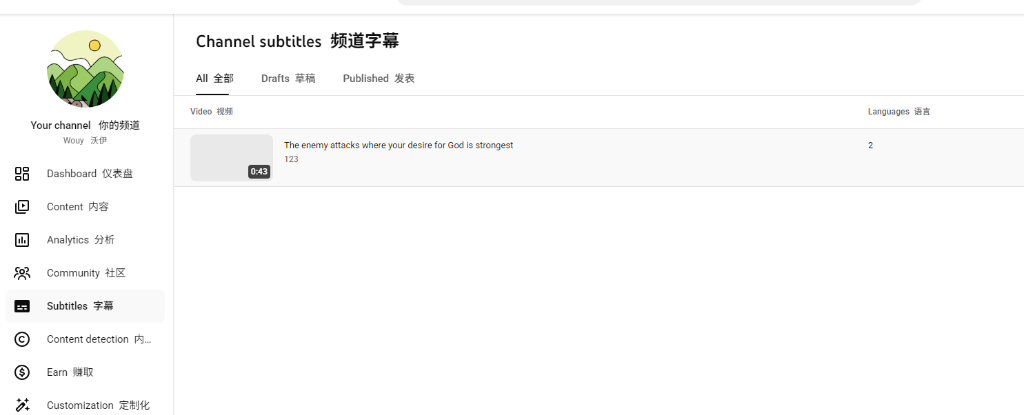
Click on the specific video title or thumbnail to open its language settings.
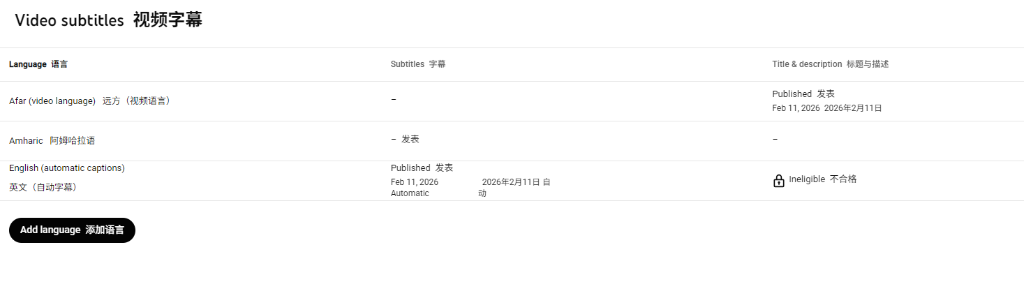
Hover your mouse over the language row (far right side). The 'three vertical dots' (Options) are HIDDEN until you hover!
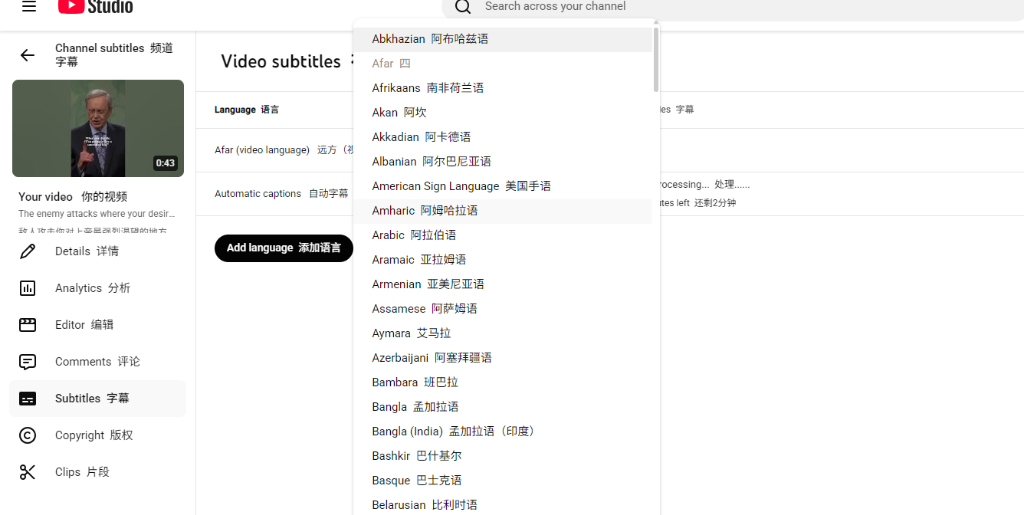
Click the three dots, select 'Download', and pick .srt format.
× You can ONLY download captions for videos you own.
× You must download one video at a time (No Batch mode).
× Navigating through menus takes 5-10 clicks per video.
× You cannot download from entire playlists or channels.
Forget clicking through studio menus. Simply paste a link to any video, playlist, or channel and get all subtitles instantly.
✓ Batch / Playlist Support
✓ Works on ANY Video
✓ Clean SRT / TXT Output
✓ No Login Required
| Feature | YouTube Studio | YTVidHub |
|---|---|---|
| Download Own Videos | ✓ | ✓ |
| Download Others' Videos | × | ✓ |
| Batch / Playlist Download | × | ✓ |
| Clean TXT Format | × | ✓ |
| Download Speed (100+ items) | 2+ Hours | 2 Minutes |
No, YouTube Studio currently only allows downloading subtitles one video at a time. To download multiple subtitles or entire playlists at once, use a dedicated tool like YTVidHub Batch Downloader.
YouTube Studio typically exports captions in .sbv (proprietary), .srt (standard), or .vtt (web) formats. .SBV is rarely supported by video editors, so always choose .SRT if available.
In YouTube Studio, go to the Subtitles tab, find the 'Automatic' language track (often labeled 'English (Automatic)'), hover over the row, click the three dots, and select Download.
Get subtitles from any video, playlist, or channel — no login required.
Try Bulk Downloader Free